Android devices have become an essential part of modern business operations. Companies use smartphones and tablets for customer service, employee communication, inventory management, field operations, self-service systems, digital signage, and many other purposes.
But not every business device needs to work like a personal smartphone.
A standard Android device gives users broad access to applications, settings, websites, and system features. This flexibility is useful when employees need a general-purpose device. However, it can become a problem when an Android tablet or smartphone is intended for a specific business task.
For example, a retail store may provide a tablet that customers use to browse products. A hotel may have a tablet for guest services. A warehouse may provide handheld Android devices for inventory management. In each situation, allowing unrestricted access to the entire Android system may create unnecessary security and management challenges.
This is where android kiosk mode comes into the picture.
Android kiosk mode creates a controlled environment in which a device can be limited to one application or a selected group of applications. It can also restrict access to certain websites, settings, and device functions.
So, what is the actual difference between standard Android mode and kiosk mode? Which option is better for businesses? And when should an organization choose one over the other?
Let's take a closer look.
What Is Standard Android Mode?
Standard Android mode is the normal operating environment found on most Android smartphones and tablets.
In this mode, users generally have access to the device's home screen, installed applications, system settings, notifications, browser, connectivity options, and other features.
The device is designed to provide flexibility.
For personal use, this is exactly what most people expect. Users can install applications, customize settings, connect accessories, browse the internet, and switch freely between different apps.
Businesses may also use standard Android devices when employees require broad access to different tools.
For example, an employee might need email, messaging, a web browser, productivity applications, video conferencing, document management, and several business-specific applications. Restricting the device too heavily could make it difficult for the employee to perform their job.
However, the flexibility of standard Android mode can become a disadvantage when a device is intended for a specific purpose.
What Is Android Kiosk Mode?
Android kiosk mode is a restricted environment designed to control how an Android device can be used.
Instead of giving users access to the entire operating system, administrators can define which applications and features are available.
A device can be configured to run a single application or provide access to a limited collection of approved applications.
For example, imagine an Android tablet installed at a restaurant for customer ordering. Customers only need the restaurant's ordering application. They do not need access to the app store, system settings, social media, or other applications.
With kiosk mode, the tablet can be configured around the ordering workflow.
This turns a general-purpose Android tablet into a dedicated business device.
Android Kiosk Mode vs. Standard Android Mode
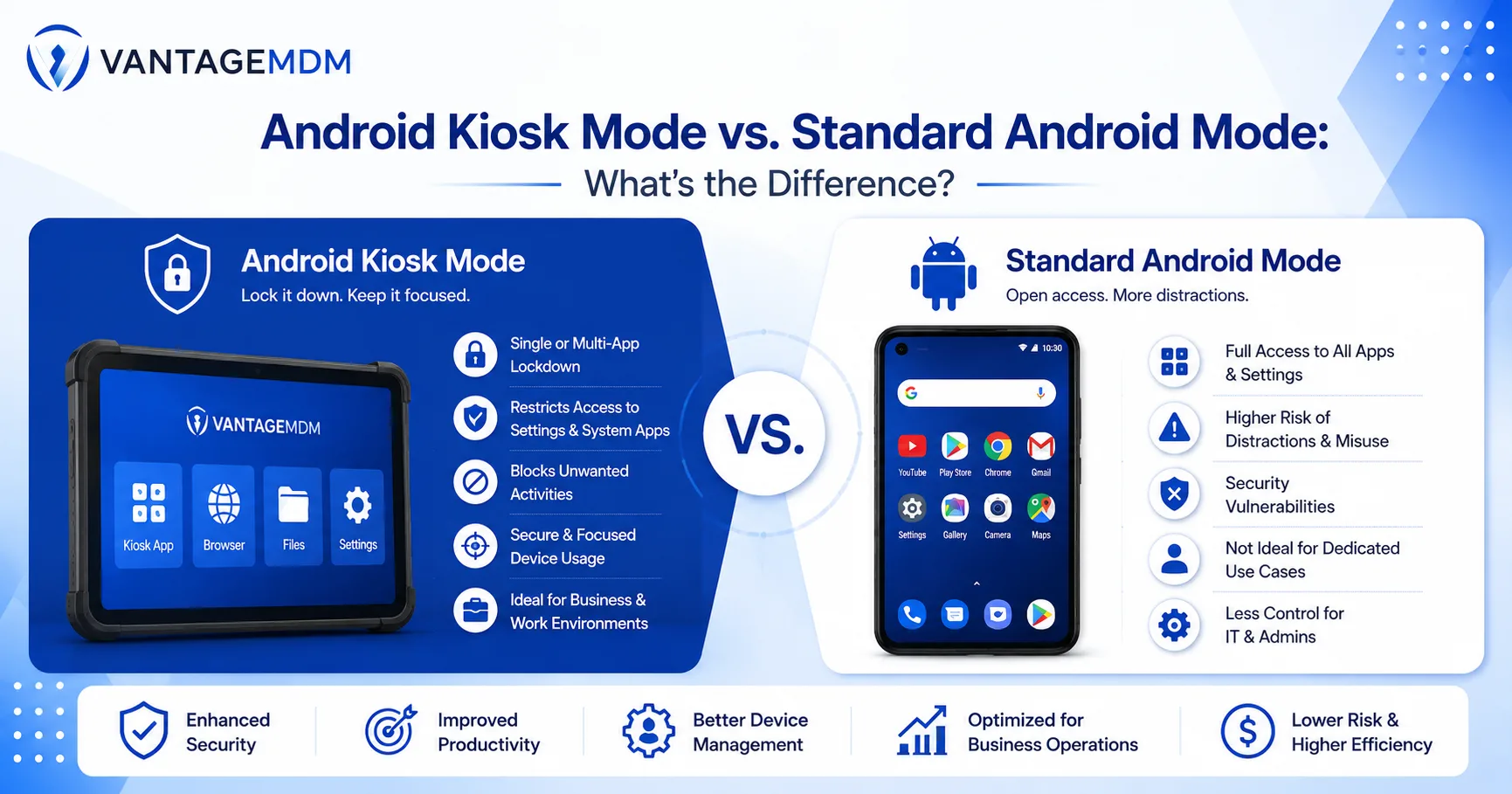
The biggest difference between the two modes is the level of user access and administrative control.
Standard Android mode prioritizes flexibility, while kiosk mode prioritizes control and purpose-specific usage.
Here is a simplified comparison:
FeatureStandard Android ModeAndroid Kiosk ModeHome screen accessGenerally availableCan be restrictedApplication accessBroadControlledSystem settingsGenerally accessibleCan be restrictedApp installationUsually availableCan be controlledWebsite accessBroadCan be restrictedUser customizationHighLimitedDevice purposeGeneral-purposeTask-specificAdministrative controlLowerHigherPublic device suitabilityLimitedHighDedicated business workflowsLess focusedHighly suitableThe exact controls available depend on the Android device, Android version, and management platform being used.
Application Access
Application access is one of the most noticeable differences.
In standard Android mode, users can normally open any application installed on the device.
This can be useful for employees who need multiple tools throughout the day. However, it may not be appropriate for shared or public-facing devices.
With Android kiosk mode, administrators can control which applications users can access.
Single-App Kiosk
A single-app configuration limits the device to one application.
This is useful for:
- Digital signage
- Self-service ordering
- Customer surveys
- Visitor registration
- Check-in systems
- Ticketing terminals
Product catalogs
The user interacts with the application without being given access to the rest of the device.
Multi-App Kiosk
A multi-app configuration allows a predefined set of applications.
This can be useful for employees who need multiple business applications but do not require unrestricted Android access.
For example, a field technician might need a work-order app, navigation, communication, and a technical documentation application.
Instead of giving the technician access to everything installed on the device, the organization can make only the required applications available.
Access to Android Settings
Another major difference involves system settings.
In standard Android mode, users can generally access settings and modify options such as Wi-Fi, Bluetooth, display, sound, accounts, and other device configurations.
For a personal smartphone, this is normal.
For a shared business device, however, unrestricted settings access can cause problems.
A user could accidentally change Wi-Fi settings or modify an option that affects the application's functionality.
Android kiosk mode can restrict access to selected system settings, helping administrators maintain a consistent device configuration.
Website and Browser Access
Standard Android devices generally provide users with broad internet access through a browser.
This is useful when browsing is part of an employee's normal workflow.
But customer-facing kiosks may not require unrestricted internet access.
For example, a retail tablet may only need to access the company's product catalog. A visitor registration tablet may only need access to a specific web application.
Kiosk configurations can help organizations control web access by allowing approved websites and restricting others, depending on the capabilities of the device management solution.
This can make the device more focused and reduce unnecessary browsing.
Device and Hardware Controls
Standard Android mode generally gives users access to many device features.
In a business kiosk environment, administrators may want to control specific hardware functions.
Depending on the device and management platform, organizations may be able to manage features such as:
- Camera
- Bluetooth
- Hardware buttons
- Screenshots
- USB-related functions
- Volume controls
Connectivity settings
The purpose is not to disable every feature. Instead, businesses can determine which functions are required for the intended workflow and restrict those that are unnecessary.
For example, a warehouse device may need Bluetooth to connect with a scanner. In that case, Bluetooth should remain available while unrelated functions can be restricted.
Security Differences
Security is another important consideration when comparing the two modes.
Standard Android mode provides greater freedom, which also means there are more opportunities for accidental or unauthorized changes.
Users may install applications, visit websites, modify settings, or interact with device features that are not required for their work.
Kiosk mode reduces the available attack and misuse surface by limiting user access.
However, kiosk mode should not be considered a complete security solution. Businesses should still use appropriate authentication, software updates, application controls, network security, and other security measures.
The role of kiosk mode is to add another layer of control around the device.
User Experience
The two modes also create very different user experiences.
Standard Android mode is designed to give users freedom. The home screen, notifications, settings, and multiple applications are part of the normal experience.
Kiosk mode is designed around a specific task.
For a customer-facing device, this can be a major advantage.
Imagine walking into a hotel and seeing a tablet for self-service check-in. You do not want to search through a collection of applications to find the check-in service. You want the device to take you directly to the relevant interface.
Kiosk mode can provide that focused experience.
Device Management
Managing a few standard Android devices manually may be possible.
But managing hundreds or thousands of devices becomes considerably more complicated.
Businesses need to maintain consistent settings, applications, restrictions, and security policies across their device fleet.
This is where an MDM, or Mobile Device Management, platform can provide additional value.
An MDM solution can allow administrators to manage Android devices from a centralized platform. Depending on the solution, administrators can configure kiosk policies, distribute applications, control device settings, apply restrictions, monitor devices, and troubleshoot issues remotely.
VantageMDM, for example, provides Android kiosk management capabilities for organizations that need to control dedicated Android devices. Its kiosk functionality supports single-app and multi-app configurations along with controls for applications, websites, device features, and settings.
For businesses operating devices across multiple locations, centralized management can be much more practical than manually configuring each device.
When Is Standard Android Mode Better?
Android kiosk mode is not automatically the right choice for every business device.
Standard Android mode may be better when employees require flexibility and access to a broad range of applications and system features.
For example, consider a sales employee who travels frequently.
The employee may need:
- CRM software
- Web browsing
- Messaging
- Video meetings
- Cloud storage
- Navigation
Productivity applications
Restricting the device to a small group of applications may make the employee's job harder.
In this situation, a less restrictive Android environment may be more appropriate, potentially combined with other mobile device management and security policies.
When Is Android Kiosk Mode Better?
Kiosk mode is generally more suitable when the device has a clearly defined purpose.
Examples include:
Customer Self-Service
A tablet may allow customers to place orders, check in, register, or browse information.
Digital Signage
An Android device may continuously display advertisements, announcements, menus, or informational content.
Public Information Kiosks
Organizations may provide tablets that allow visitors to access specific information without giving them unrestricted device access.
Warehouse Devices
Android handhelds and tablets can be restricted to inventory, barcode scanning, shipment, and operational applications.
Field Service
Technicians can be provided with approved applications required to complete service jobs.
Education
Schools may use kiosk configurations for exams, training applications, or controlled educational activities.
Healthcare
Healthcare organizations can use restricted devices for check-in, registration, surveys, and other dedicated workflows.
In each of these examples, the device has a specific role, making kiosk mode particularly useful.
Advantages of Android Kiosk Mode for Businesses
The differences between the two environments lead to several practical benefits.
More Control
Administrators have greater control over how business-owned devices are used.
Fewer Unwanted Changes
Users have fewer opportunities to modify important settings or remove applications.
Better Focus
Employees and customers interact with the applications and services relevant to the task.
Consistent Configuration
Organizations can create standardized device environments across locations.
Easier Public Deployment
Kiosk devices can be safer and easier to operate when placed in publicly accessible areas.
Centralized Administration
When combined with an MDM platform, administrators can manage large groups of devices remotely.
Potential Limitations of Kiosk Mode
Although kiosk mode has many advantages, businesses should also understand its limitations.
The biggest consideration is reduced flexibility.
If users suddenly need an application that is not included in the kiosk configuration, administrators may need to modify the policy.
Overly restrictive policies can also interfere with legitimate business activities.
For this reason, businesses should carefully define user requirements before deployment.
A good kiosk configuration should restrict unnecessary functionality without blocking the features employees or customers genuinely need.
How to Choose Between the Two
The decision can be simplified by asking a few questions.
Does the device have a dedicated purpose?
If yes, kiosk mode may be suitable.
Will customers or many different users share the device?
If yes, kiosk mode can provide useful additional control.
Does the employee need access to many unrelated applications?
If yes, standard Android mode may be more appropriate.
Does the device need to operate across multiple locations?
If yes, consider using an MDM platform for centralized management.
Does the business need to restrict websites or device functions?
If yes, kiosk management may provide the controls required.
The goal is not simply to choose the most restrictive option. The goal is to select the environment that matches the device's purpose.
Final Thoughts
The difference between android kiosk mode and standard Android mode comes down primarily to flexibility versus control.
Standard Android mode is designed as a general-purpose environment where users can access applications, settings, websites, and device features freely. This makes it useful for employees who need a broad collection of tools.
Android kiosk mode takes a different approach. It turns an Android smartphone or tablet into a controlled device designed around a specific business purpose. Administrators can restrict applications, websites, system settings, and selected device functions according to organizational requirements.
For customer-facing tablets, digital signage, self-service systems, warehouse devices, and dedicated business applications, kiosk mode can provide a more focused and manageable environment.
For employees who require broad access to applications and Android features, standard Android mode may be a better fit.
Businesses managing larger device fleets can also combine kiosk functionality with an MDM solution to simplify application deployment, policy management, monitoring, and remote troubleshooting.
Ultimately, there is no single mode that is best for every situation. The right choice depends on how the Android device will be used, who will use it, and how much control the organization needs.
By understanding these differences before deployment, businesses can create an Android environment that provides the right balance between usability, security, flexibility, and administrative control.