
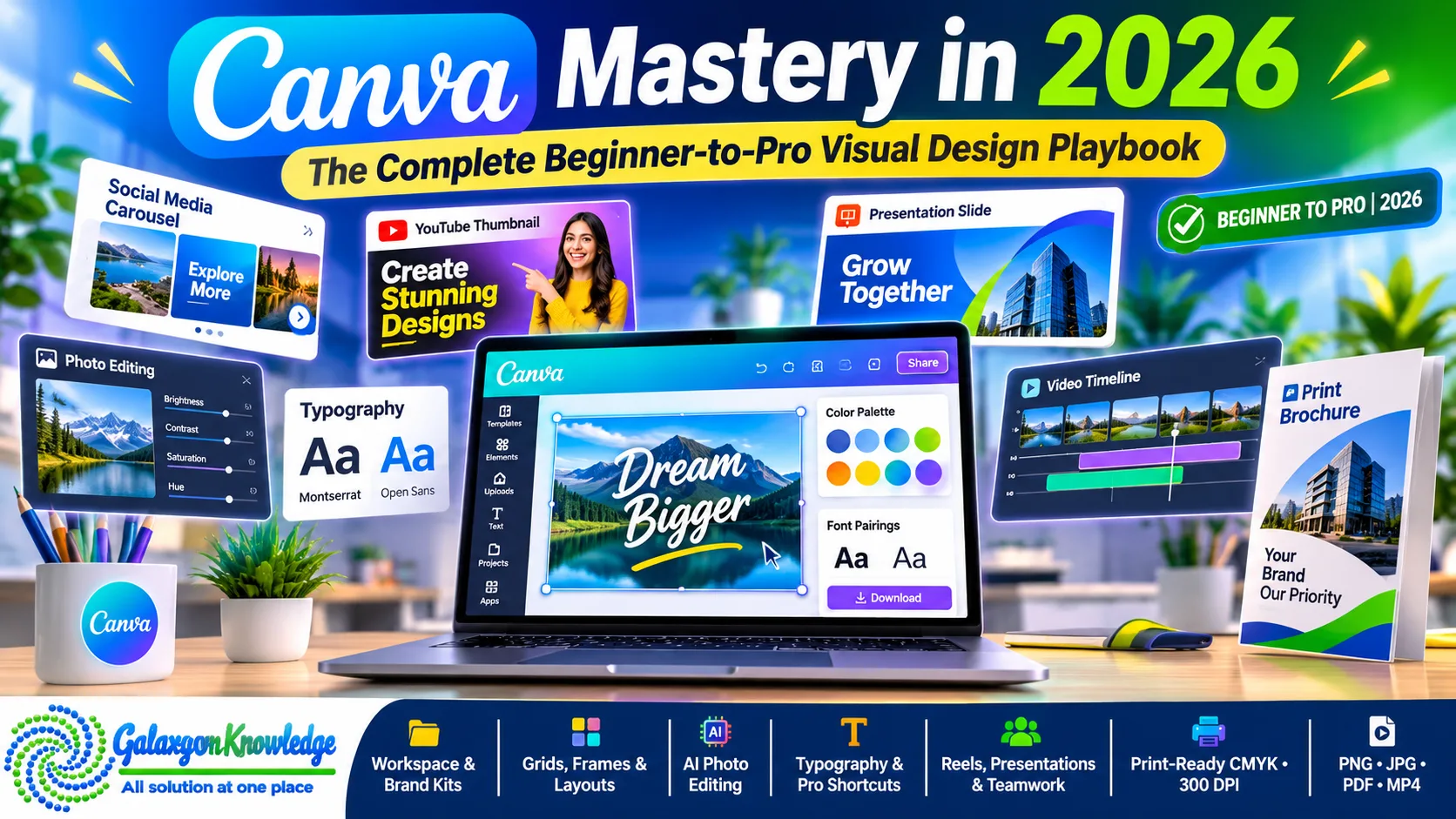
Why Visual Communication Is the Defining Skill of 2026
Digital attention spans have never been shorter. Whether you are launching a SaaS startup, scaling a personal brand, or managing enterprise marketing campaigns, your audience judges your credibility in less than two seconds based purely on visual presentation.
Historically, producing studio-grade graphics required expensive software licenses and years of technical training. Today, browser-based design ecosystems have leveled the playing field. Mastering Canva is no longer just about dragging and dropping pre-made social media templates—it is about building a scalable, high-speed visual production system that drives real business results.
In this comprehensive playbook, we break down the exact architecture of professional Canva workflows—from workspace optimization and typographic hierarchy to print production, motion design, and monetization strategies.
1. Mastering the Workspace and Dashboard Architecture
Speed in graphic design comes from muscle memory and clean organization. Before touching a single font or color swatch, professionals configure their workspace for maximum efficiency.
- The Central Command Hub: Your home dashboard acts as a project management system. Organizing work into dedicated folders for client assets, brand kits, and campaign templates prevents the clutter that slows down daily execution.
- Dynamic Toolbar Awareness: Unlike traditional desktop software with static menus, Canva’s top toolbar adapts dynamically based on the selected element. Clicking text reveals typographic controls, while selecting an image unlocks photo-editing engines and masking tools.
- Cross-Device Continuity: Modern creators rarely work from a single desk. The mobile application mirrors desktop cloud storage in real time, allowing you to review team comments, resize urgent social assets, and publish directly from your smartphone while traveling.
2. Structural Foundations: Grids, Frames, and Visual Balance
Amateur designs often look "off" because elements are placed randomly without structural alignment. Professional layouts rely on invisible geometry to guide the viewer's eye naturally from the headline to the call to action.
- Smart Grids and Layout Guides: Enabling rulers, guides, and margins ensures consistent padding around the edges of your canvas. Using multi-column layout grids keeps multi-photo collages mathematically balanced.
- Precision Masking with Frames: Frames allow you to drop photos or looping videos into custom silhouettes—such as mobile device mockups, geometric circles, or torn-paper edges—automatically cropping the media to fit cleanly.
- Keyboard-Driven Speed: Relying solely on a mouse doubles production time. Pressing R instantly spawns a rectangle, C drops a circle, L creates a clean divider line, and T inserts a text box ready for typing.
3. Beyond Stock Layouts: How Pros Customize Templates
Templates are starting blueprints, not finished products. Publishing an unedited template hurts brand authority because audiences immediately recognize overused layouts.
To transform a standard layout into a bespoke brand asset:
- Swap the Color Architecture First: Apply your brand’s primary, secondary, and accent hex codes immediately so the layout reflects your identity.
- Replace Default Typography: Change generic template fonts to your established brand font pairing to maintain consistency across all marketing channels.
- Break the Symmetry: Slightly overlap text boxes across image borders, adjust element transparency, or replace standard stock photos with authentic product photography to create custom depth.
This structured customization approach is especially effective when building investor pitch decks, webinar slides, and executive reports where clarity and authority matter most.
4. Non-Destructive Photo Editing and AI Background Engines
Modern visual design requires seamless photo manipulation without switching between multiple applications.
- One-Click Subject Isolation: The Background Remover isolates people, products, and objects with clean edge detection, making it effortless to build high-converting YouTube thumbnails and e-commerce product listings.
- Foreground and Background Separation: Using Magic Grab, you can lift a subject right out of a flat photograph, place bold headline typography behind them, and create magazine-style depth in seconds.
- Color Grading Consistency: When combining multiple photos on one page, apply identical brightness, contrast, warmth, and saturation adjustments so every image looks like it came from the same photoshoot.
5. Typography, Font Pairing, and Micro-Hierarchy
Typography does 80% of the heavy lifting in communication design. Even the best photography cannot save a layout with unreadable or clashing fonts.
- The Rule of Two: Limit every design to a maximum of two complementary typefaces—one bold, high-contrast display font for headlines and one clean, neutral sans-serif font for body copy.
- Visual Hierarchy Through Scale: Your main headline should be roughly double the size of your subheadings, while body copy remains clean and generously spaced.
- Tactile Text Effects: Subtle drop shadows improve readability over busy photo backgrounds, while curved text paths add polish to circular badges, podcast covers, and brand stamps.
6. Pro Shortcuts and Hidden Workflow Accelerators
Top digital marketers and freelance designers deliver projects in a fraction of the usual time because they utilize built-in workflow accelerators:
- The Slash Command (/): Pressing the forward slash key anywhere on the canvas opens an instant search bar for shapes, charts, magic tools, and media without moving your cursor.
- Layer Stack Management: Opening the Position panel reveals a full layer hierarchy, making it easy to lock background textures and select buried elements without accidentally dragging other objects.
- Format Painter (Ctrl/Cmd + Alt + C): Copy the exact font, size, color, and effect styling from one text block and paste it onto another in a single click.
- Centralized Brand Kits: Storing approved logos, hex palettes, and custom typefaces inside a Brand Kit eliminates repetitive manual formatting across team projects.
7. Motion Graphics, Reels, and Interactive Presentations
Static posts maintain baseline visibility, but motion captures algorithmic reach across modern social feeds.
- Multi-Track Video Timeline: Canva’s timeline editor handles short-form vertical video production for Reels, Shorts, and TikToks. You can trim B-roll clips, sync cuts to audio beat markers, and generate stylized auto-captions automatically.
- Custom Motion Paths: Instead of relying only on standard fade-ins, you can draw custom paths that guide icons, product mockups, or arrows smoothly across the screen.
- Interactive Digital Documents: Adding clickable buttons, embedded video players, and external hyperlinks transforms static PDFs into interactive lead magnets and digital proposals.
8. Collaborative Workflows for Teams and Agencies
Scaling content production requires smooth collaboration between copywriters, designers, and stakeholders.
- Granular Permission Controls: Share links with view-only access for clients, comment-only access for reviewers, or full edit permissions for internal team members.
- Contextual Sticky-Note Feedback: Reviewers can highlight specific sections of a slide and tag team members directly, keeping revision threads organized and actionable.
- Locked Brand Templates: Marketing leads can lock logo placement and brand colors inside shared templates so regional teams can update local text without breaking brand guidelines.
9. Print Production Guidelines: CMYK, Bleed, and DPI
Designing for physical print requires strict adherence to commercial printing standards. Screens emit light using RGB color models, whereas commercial presses apply physical ink using CMYK profiles.
- Print Bleed and Safe Margins: Always activate Show Print Bleed and Show Margins inside File Settings. Extend background colors all the way to the outer bleed line so white paper edges never appear after mechanical trimming.
- 300 DPI Asset Quality: Ensure all uploaded raster logos and photographs are high resolution to prevent blurry prints on tri-fold brochures, event banners, packaging, and business cards.
- CMYK Color Proofing: Download print-ready files using the PDF Print setting with the CMYK color profile enabled to ensure rich blacks and accurate brand colors on paper.
10. High-Impact Design Use Cases Across Platforms
Different distribution channels require tailored visual strategies:
- Social Media Ecosystems: Build seamless multi-slide Instagram carousels, authoritative LinkedIn data infographics, and thumb-stopping Facebook ad creatives using Magic Switch to instantly adapt one master design across multiple aspect ratios.
- Channel Branding and Avatars: Design YouTube channel banners keeping critical text centered inside the desktop/mobile safe zone, pair them with right-aligned LinkedIn covers, and craft high-contrast circular profile avatars that stand out in comment feeds.
- Minimalist Brand Identities: Construct timeless logos using clean geometric vectors, balanced negative space, and scalable SVG exports that remain razor-sharp from mobile favicons to highway billboards.
- Print-on-Demand Apparel: Create high-contrast vector typography and distressed illustrations for t-shirts and hoodies, exporting final artwork as 300 DPI transparent PNG files.
11. Precision Exporting: Choosing the Right File Format
Selecting the wrong export format ruins sharp typography and slows down website load times. Use this quick reference matrix before delivering final files:
Use CaseRecommended FormatKey ConfigurationLogos, Icons & StickersPNG or SVGEnable Transparent Background; export at 2x–3x scale for crispness.Web Blog Images & PhotosJPGSet quality to 80–90% for fast page load speeds and strong SEO.Commercial Print MaterialsPDF PrintSelect CMYK Color Profile and enable Crop Marks and Bleed.Digital eBooks & Pitch DecksPDF StandardKeeps clickable hyperlinks intact with lightweight file sizes.Reels, Ads & Motion GraphicsMP4 VideoExport in 1080p (standard social) or 4K (high-end displays).
12. Real-World Practice Projects to Build Your Portfolio
The fastest way to master visual design is by executing structured, real-world briefs:
- Challenge 1 — Digital Product Launch Kit: Create a complete social launch campaign for a fictional AI productivity tool. Deliver a minimalist transparent PNG logo, a 4-slide educational LinkedIn carousel, and a 15-second animated promotional Reel with kinetic text hooks.
- Challenge 2 — Corporate Print & Pitch Suite: Build an agency-ready branding package featuring a double-sided CMYK business card with bleed marks, a 6-slide investor pitch deck, and a high-converting digital display ad creative.
13. Turning Design Skills Into Real-World Value
Whether you are a student, business owner, or aspiring freelancer, visual literacy translates directly into tangible career and revenue opportunities:
- For Students & Educators: Transform dense lecture notes into visual mind maps, design clean academic resumes, and collaborate on interactive group presentations.
- For Small Businesses: Maintain Fortune-500-level visual consistency across invoices, product catalogs, pitch decks, and social ads without bloated agency retainers.
- For Freelancers & Digital Creators: Monetize your expertise by offering YouTube thumbnail packages, social media content retainers, and presentation redesign services on freelance marketplaces—or by selling digital planners, resume templates, and printable wall art on platforms like Etsy and Gumroad.
Final Takeaway
Great design is no longer gatekept by technical complexity. By combining structured layout grids, disciplined typography, non-destructive photo editing, and smart workflow shortcuts, anyone can build a repeatable system for producing high-impact visual communication in 2026 and beyond.
Written by the GalaxyonKnowledge Editorial & Digital Strategy Team — empowering learners and professionals with practical skills in technology, AI, and digital marketing.