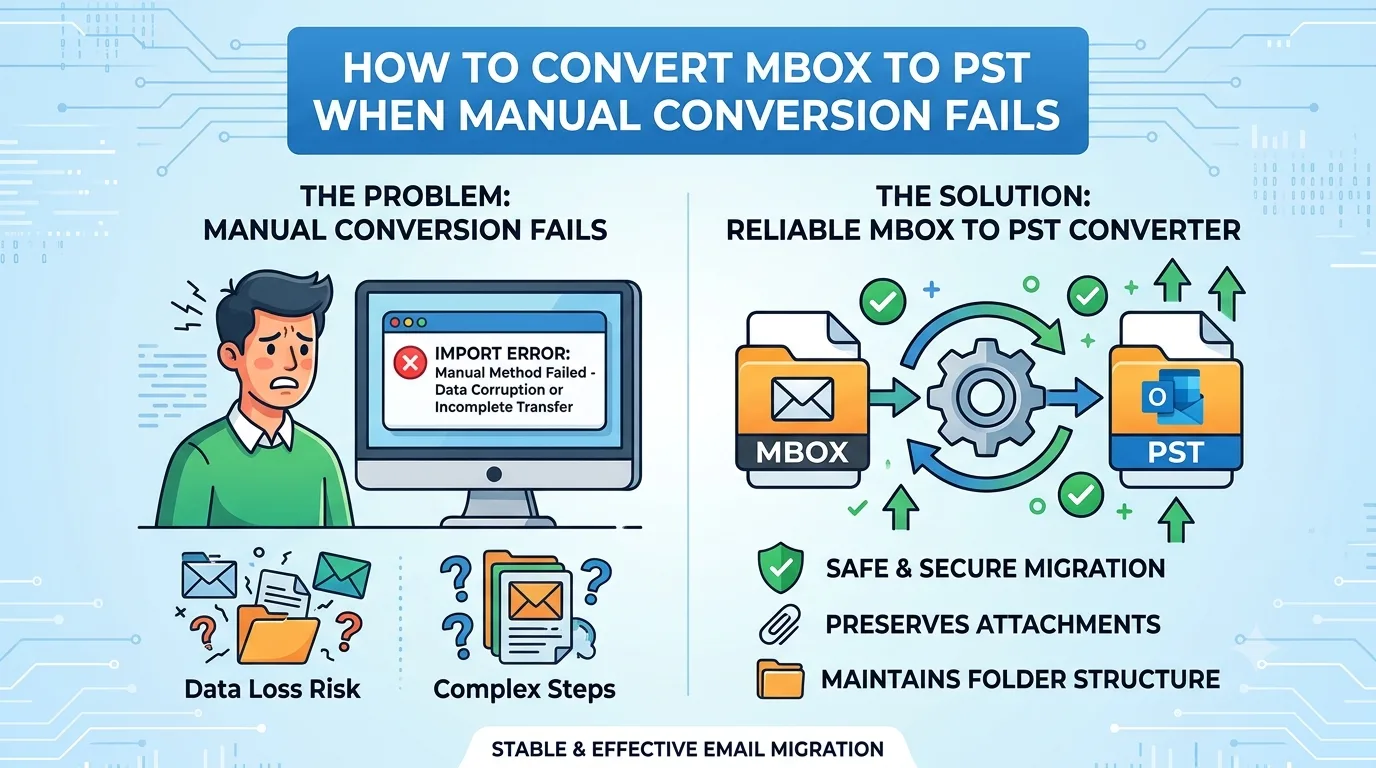
I have handled mailbox moves for years, and one complaint keeps coming up: “Outlook won’t take my MBOX file, and the drag-and-drop trick froze halfway.” If that sounds familiar, you need a reliable way to convert MBOX to PST when manual conversion fails, not another round of renaming files. This guide explains why the free routes break, how to spot the failure early, and how to finish the job without losing a single email. Use a dedicated offline converter. The MailPro+ MBOX to PST Converter Tool lets you add MBOX files, preview every email, filter what you need, and export a Unicode PST in four steps. It works without Outlook and keeps folders, attachments and dates intact.
Most common error: Renaming the .mbox file to .pst. Outlook then reports that the file is not a personal folders file, because the contents were never converted.
Why Outlook Cannot Open an MBOX File
Outlook for Windows stores mail in PST and OST files. MBOX is a different design: one plain-text file where every message starts with a “From “ separator line. Outlook has no built-in import option for it, so you must convert the data, not just rename it.
MBOX comes from Thunderbird, SeaMonkey, Eudora, Mac mail clients and cloud mailbox exports. In Thunderbird, the mail files have no extension at all (Inbox, Sent, Drafts), which confuses many people.
Most common error: Hunting for an “Import MBOX” option in Outlook that does not exist.
Why Manual Methods Break
Three free routes exist, and each has a predictable failure point.
Method 1: Thunderbird to Outlook through IMAP. You connect the same account in both programs and copy folders across. It costs nothing, but it needs a live server account, runs into storage quotas, stalls on large attachments and often creates duplicates. It also fails when your MBOX is only an exported file with no account behind it.
Method 2: Save as EML, then drag into Outlook. This works for a few dozen messages. Dragging thousands at once often freezes Outlook with a “Not Responding” window. The folder tree is flattened, and read status or dates sometimes come out wrong.
Method 3: The Outlook import wizard. It handles PST, CSV and similar formats, but MBOX is not among them.
Advantages of manual methods: no cost, no new software, fine for a handful of emails.
Limitations: slow, no preview, no duplicate control, weak folder preservation, and a poor fit for large or multiple files.
Most common error: Trusting that a finished drag-and-drop means every message arrived. Always compare counts afterward.
Signs Your Manual Conversion Has Failed
Look for these warning signs:
- Outlook freezes or crashes during import
- The imported folder is empty or missing subfolders
- Message counts do not match the source
- Attachments show as zero bytes or cannot be opened
- Dates reflect the import day instead of the original send date
- Everything lands in one flat folder
If you see any of these, stop retrying and switch to a tool built to convert MBOX to PST when manual conversion fails. Repeated attempts only add duplicates and more cleanup.
Most common error: Running the same manual import three or four times, then spending hours deleting duplicate mail.
Prepare Before You Convert
Preparation matters most when you convert MBOX to PST when manual conversion fails, because your source file may already be partly damaged.
- Back up first. Copy the MBOX files to a separate folder or drive. Never work on your only copy.
- Locate the right files. In Thunderbird, choose the extensionless mail file, not the .msf index file next to it.
- Check free space. A PST can end up close to the size of the source. Keep enough room on the destination drive.
- Meet the requirements. MailPro+ runs on Windows 11, 10, 8.1, 8 and 7, plus Windows Server editions. It needs .NET Framework 4.5 or later, 2 GB RAM and 100 MB of free disk space. Launch it as Administrator.
- Using a Mac mail client? Export the MBOX, copy it to a Windows PC, then run the converter there.
Most common error: Launching the tool without administrator rights, which can trigger permission problems later in the export.
Step-by-Step: Convert MBOX to PST With Professional Tool
Here is the exact process I follow to convert MBOX to PST when manual conversion fails.
Step 1: Create a collection. Launch the software and create a new collection. This keeps your case organized and saves your work for later.
Common error: Skipping the collection and losing track of which files were already processed.
Step 2: Add your MBOX files. Add individual files or an entire folder. If you do not know where the files are, use the built-in find feature to search a drive. Recursive listing reads emails in nested subfolders too.
Common error: Adding the .msf index file instead of the real mail file.
Step 3: Preview before converting. Check emails across the eight preview modes, including Normal, Message Header, Hex, MIME and HTML views. Open a few messages with attachments to confirm the source is healthy.
Common error: Converting blind, then discovering the source file was corrupt or incomplete.
Step 4: Export to PST. Choose PST as the output, set a naming pattern such as Subject or Subject plus Date, keep the folder hierarchy option on, tick “Exclude Duplicates” if needed, and pick a save location with plenty of space.
Common error: Saving to a nearly full drive, which stops the export halfway.
The free demo exports 50 items and accepts two files of each type, so you can verify the output before buying a license. The software creates a Unicode PST by default, so file size is not a worry for modern Outlook.
Features That Solve What Manual Methods Miss
- Batch conversion: several MBOX files in one run, with attachments.
- Duplicate removal: optional, so repeated emails do not bloat the PST.
- Wildcard search: more than 10 parameters such as To, From, Subject, Importance and Sent Date, useful for legal or HR requests where only relevant mail should move.
- Folder hierarchy: the structure carries over instead of flattening.
- Large files: the vendor states a 2.8 GB Inbox.mbox converts successfully.
- Offline, read-only operation: nothing is uploaded, and the vendor says the installer is scanned with VirusTotal.
Most common error: Exporting every message “just in case”, creating an oversized PST full of mail nobody needs.
What Most Guides Miss
Encoding problems. Older MBOX files can hold mixed character sets. Preview a few non-English subject lines before exporting so you catch garbled text early.
Separator damage. If a message body contains a line starting with “From “ that was not escaped, some parsers split one email into two. A preview helps you spot this.
Verification. After export, compare message counts per folder between the preview and the PST. Do not rely on a “success” message alone.
Outlook version differences. The classic Outlook import wizard opens PST files directly. Support in the newer Outlook is still expanding, which is why a Unicode PST is the safest choice.
PST size planning. Very large archives are easier to manage when split by date range or sender using the search filters, rather than one giant file.
Most common error: Assuming the process is finished once the PST exists, without opening it in Outlook to confirm folders, dates and attachments.
Open the PST in Outlook
In classic Outlook, go to File, then Open & Export, then Open Outlook Data File, and select your new PST. Browse the folders, open a few attachments, and check that dates match the originals. If the content looks right, you can drag folders into your live mailbox or keep the PST as an archive.
Most common error: Importing the PST into the wrong mailbox profile and thinking the mail vanished.
Frequently Asked Questions
Q1. How do I convert MBOX to PST when manual conversion fails?
Answer. Use a dedicated converter. Add the MBOX files, preview them, apply filters if needed, then export to PST with folder hierarchy enabled. This avoids the IMAP and EML limits described above.
Q2. Can Outlook open an MBOX file directly?
Answer. No, Outlook cannot read MBOX, and renaming the file does not change its structure.
Q3. Is it safe to convert MBOX to PST when manual conversion fails with a third-party tool?
Answer. Choose software that runs offline and never uploads your mail. MailPro+ operates in read-only mode on your machine, and the demo lets you test with real data first.
Q4. Can I convert MBOX to PST without Outlook installed?
Answer. Yes, The converter writes the PST itself, so Outlook is not required for conversion.
Q5. How do I convert Thunderbird MBOX to PST?
Point the tool at the extensionless mail files in your Thunderbird profile, preview them, and export to PST.
Q6. Will attachments and folders survive?
Answer. Yes, when attachment conversion and the hierarchy option are enabled, both carry over.
Q7. Can I convert many MBOX files at once?
Answer. Yes, Add several files or a whole folder and export them in one batch.
Q8. Will I get an ANSI or Unicode PST?
Answer. Unicode by default, which avoids the old size ceiling of legacy ANSI files.
Final Thoughts
Manual methods are fine for a few emails, but they collapse with large archives, missing accounts or deep folder trees. When that happens, a purpose-built converter is the fastest and safest route. Keep the process simple: back up, preview, filter, export, verify. That is how I convert MBOX to PST when manual conversion fails, and it has saved me from repeated cleanup on every project.