If you're using Microsoft Outlook, you've probably heard of the OST file. This file allows Outlook users to work with their emails, calendars, contacts, and other items even when they aren't connected to the internet. But sometimes, you might need to locate the OST file to convert OST file to PST. In this guide, we'll show you how to find the Outlook OST file location in Windows.
What is an OST File?
An OST (Offline Storage Table) file is used by Outlook in conjunction with Microsoft Exchange and Office 365 accounts. It allows you to access your emails and calendar events offline. When you reconnect to the internet, Outlook will synchronize your local changes with the server. Unlike PST (Personal Storage Table) files, which store data locally and can be moved across systems, OST files are tied to the account on which they were created and can't be easily transferred to another device.
Why Might You Need to Find the OST File Location?
Backup: If you want to create a manual backup of your Outlook data, you may need to locate your OST file.
Migration: When migrating Outlook data to a new computer, you may need to copy the OST file.
Troubleshooting: Sometimes, the OST file becomes corrupted, and you may need to locate it to fix or recreate it.
How to Find the Outlook OST File Location in Windows?
There are a few different methods you can use to find the location of your OST file, depending on your version of Outlook and Windows. By default, Outlook stores OST files in a specific location. However, if you haven't changed the default settings, your OST file should be located in one of these directories.
For Windows 10 and Windows 11
- C:\Users\[YourUsername]\AppData\Local\Microsoft\Outlook
- C:\Users\[YourUsername]\Local Settings\Application Data\Microsoft\Outlook (Often hidden, so you may need to enable hidden files to view it)
For Windows 7 and Windows 8
- C:\Users\[YourUsername]\AppData\Local\Microsoft\Outlook
To access the OST file, replace [YourUsername] with your actual Windows user account name.
How to Recover OST File to PST?
Once you find out the OST file using above mentioned method, users can easily convert OST files to PST format using EmailsGuru OST to PST Converter. It allow users to convert OST file to PST saving emails, contacts, calendars, notes and all other items. Most importantly, it recovers and convert corrupted inaccessible OST files to PST. Here are few steps to recover OST file to PST:
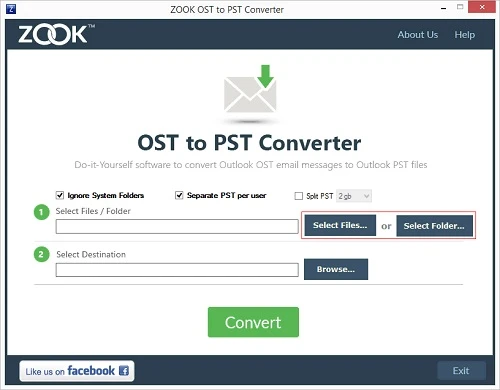
- Install and run OST to PST Converter.
- Select OST files to convert into PST.
- Set saving folder to store output PST file.
- Click the Convert option to perform the OST to PST recovery process.
Conclusion
Finding your Outlook OST file location is essential for managing your email data effectively and recover and convert OST file to PST, following the steps outlined in this guide will help you access the file quickly. Remember to handle OST files with care, and always consider making backups to safeguard your important data. By mastering the location and management of your OST files, you'll enhance your overall efficiency in using Microsoft Outlook.