A slow printer can be frustrating, especially in a busy office where employees need to print reports, invoices, presentations, and other important documents throughout the day. While some printing tasks naturally take longer, a noticeable decrease in printing speed can indicate an issue with the printer, its settings, connection, or maintenance.
Understanding the common causes of slow printing can help you identify simple problems and determine when professional assistance may be required.
1. Low-Quality or High-Resolution Print Settings
One of the most common reasons for slow printing is the selected print quality. High-resolution settings use more ink or toner and require the printer to process more information before producing the document.
If you are printing a simple internal document, consider using a standard or draft-quality setting. Reserve high-quality settings for photographs, presentations, or documents where detailed printing is important.
2. Large or Complex Documents
Large files containing high-resolution images, graphics, charts, or multiple pages can take longer to process.
The computer may need to prepare the document before sending it to the printer. If simple text documents print quickly but image-heavy files are slow, the file size or complexity may be the primary cause.
Reducing image resolution or simplifying the document may improve printing speed.
3. Slow Wi-Fi or Network Connection
Wireless printers depend on a stable network connection. If the Wi-Fi signal is weak or the network is experiencing heavy traffic, documents may take longer to reach the printer.
Try moving the printer closer to the router if appropriate, or check the network connection. For office environments, a wired network connection may sometimes provide more consistent communication.
4. Outdated Printer Drivers
Printer drivers allow your computer and printer to communicate correctly. Outdated, corrupted, or incompatible drivers can cause delays and other printing problems.
Check the printer manufacturer's official support resources for the latest driver compatible with your operating system.
After updating the driver, restart the computer and test the printer again.
5. Too Many Documents in the Print Queue
A long or stuck print queue can make the printer appear unusually slow. Multiple large documents may be waiting to be processed before your current job.
Check the print queue and remove documents that are no longer needed. If one job is repeatedly preventing other documents from printing, cancel it and send a smaller test document.
6. Printer Memory Limitations
Printers have limited internal memory. Large documents, high-resolution images, and complex graphics can require significant processing capacity.
Older printers may take considerably longer to process demanding files. If the printer is frequently used for large documents, a model designed for higher workloads may provide better performance.
7. Low Ink or Toner
Low ink or toner can sometimes affect printing performance, depending on the printer model and how it handles supply warnings.
If your printer is showing a low-supply warning along with poor print quality or unusual delays, check the cartridge or toner level.
Replace the cartridge when necessary using supplies recommended for your specific printer.
8. Dirty Printheads or Internal Components
Dust, paper particles, and ink buildup can affect printer performance. Inkjet printers may experience clogged printheads, while laser printers can develop issues involving rollers or other internal components.
Routine cleaning according to the manufacturer's instructions can help maintain performance.
Avoid using unsuitable cleaning products or attempting to disassemble internal components without proper knowledge.
9. Paper Problems
Incorrectly loaded paper, unsuitable paper types, or damaged sheets can cause the printer to slow down or repeatedly pause.
Make sure the paper is appropriate for the printer and loaded correctly. Remove bent, damp, or damaged sheets from the tray.
If the printer frequently pauses while feeding paper, there may be a problem with the rollers or paper-feed mechanism.
10. Printer Settings May Be Causing Delays
Certain printer settings can intentionally reduce printing speed. Duplex printing, special paper modes, color printing, and high-quality settings may require additional processing time.
Review the print preferences and select the appropriate settings for the task. For everyday office documents, standard settings are often sufficient.
11. The Printer May Be Overheating
Continuous heavy printing can cause some printers to slow down temporarily. Certain models include protective mechanisms that reduce printing speed when internal components become too hot.
If the printer becomes slower after extended use, allow it to cool according to the manufacturer's recommendations. Ensure that ventilation openings are not blocked.
Businesses with high printing volumes should use equipment designed for their required workload.
12. Older Hardware Can Become Less Efficient
Older printers may naturally become slower as components wear out. Rollers, fusers, motors, printheads, and other parts can lose efficiency over time.
If your printer is several years old and has multiple performance issues, professional inspection can help determine whether maintenance or replacement is the better option.
Signs That Your Printer Needs Professional Attention
Slow printing becomes more concerning when it occurs alongside other problems, such as:
- Frequent paper jams
- Unusual mechanical noises
- Repeated error messages
- Poor print quality
- Printer disconnecting from the network
- Documents remaining stuck in the queue
- Paper feeding incorrectly
- Printer overheating frequently
If several problems occur together, the issue may require professional diagnosis.
When to Contact a Printer Repair Professional
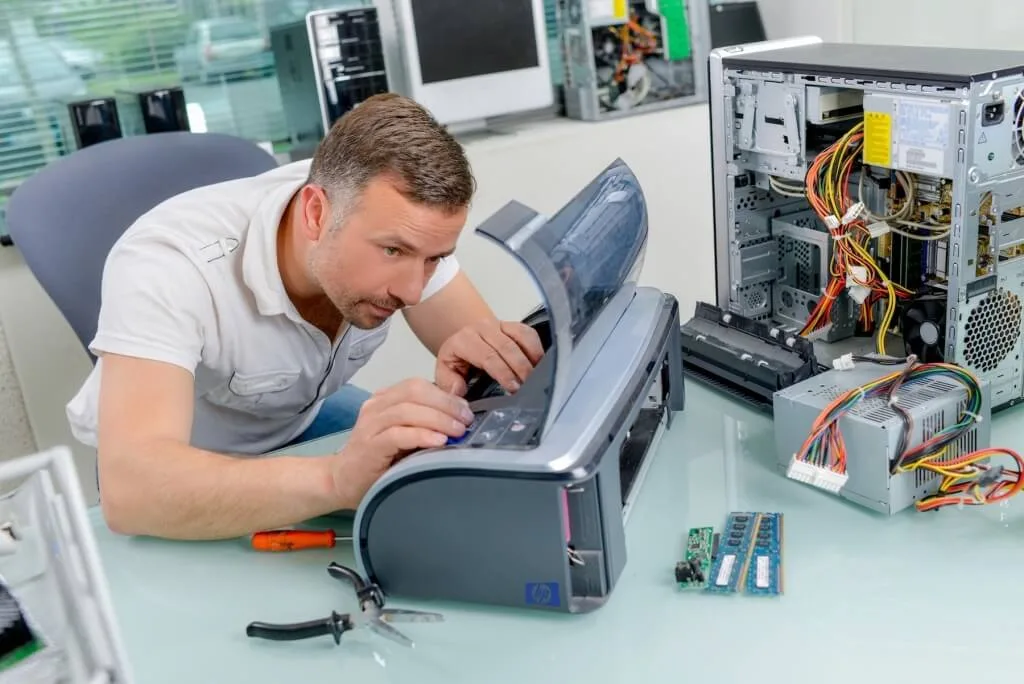
Simple issues such as print settings, paper loading, and print queues can often be checked by users. However, mechanical, electrical, or internal printer problems should be handled by a qualified technician.
Professional printer repair Dubai services can inspect internal components, identify worn parts, troubleshoot connectivity issues, and determine why the printer has become unusually slow.
For businesses that depend on printers every day, timely professional maintenance can help reduce downtime and prevent small problems from becoming more expensive repairs.
How to Prevent Slow Printing
Regular maintenance can help keep your printer operating efficiently. Clean the printer according to the manufacturer's recommendations, use suitable paper and cartridges, keep drivers updated, and avoid exceeding the printer's recommended workload.
It is also helpful to monitor unusual changes in printing speed. A gradual decrease in performance can be an early warning sign of a developing mechanical or maintenance issue.
Conclusion
A slow printer does not always mean that the machine needs to be replaced. Print settings, large documents, network problems, outdated drivers, paper issues, low supplies, and internal dirt can all affect printing speed.
Start by checking simple causes such as print quality settings, the print queue, paper, and network connection. If the printer remains slow or shows additional warning signs, professional printer repair Dubai assistance can help identify the underlying problem.
Regular maintenance and timely repairs can improve printer performance, reduce interruptions, and help your equipment remain reliable for longer.