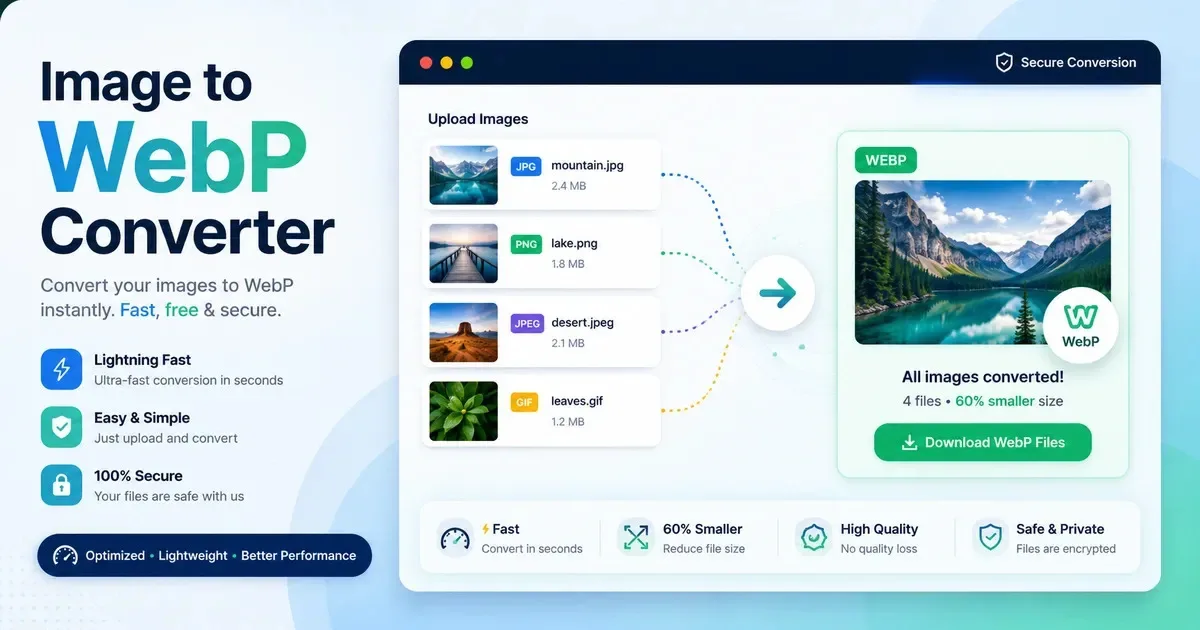
Images are often one of the largest contributors to the amount of data a webpage has to download. That matters because a website can contain perfectly written content, clean code, and a good hosting setup, yet still feel slow because its images are unnecessarily large. This is especially common on older websites that have accumulated years of JPG files.
JPG remains a perfectly useful image format, but it was not designed around every modern web performance concern. A Free JPG to WebP Converter offers another way to store and deliver many photographs and other web images with less data.
That makes a free JPG to WebP converter a practical option for website owners who already have a library of JPG images and want to explore whether converting them can reduce their image payload.
But there is an important distinction between converting an image and actually optimizing it. A smaller WebP file can help, but the result depends on image dimensions, compression settings, quality, delivery, and how the image is implemented on the page.
The sensible approach when using a Free JPEG to WebP Converter is not to convert everything blindly. It is to identify images that can benefit, convert them, compare the results, implement them correctly, and then measure the effect on the real website.
Why Are JPG Images Still Common on Websites?
JPG has been around for a long time, and that familiarity is one of the main reasons it remains everywhere. Cameras, photo-editing applications, stock-image libraries, content management systems, and older websites have traditionally relied heavily on JPG for photographs and other images containing many colors.
It is also a format that most website owners understand. Someone downloads a photograph, edits it, saves it as a JPG, and uploads it. There is no complicated decision involved. The image works on virtually every modern browser and has been supported by web software for years.
Existing websites are another major reason. A business that launched its website eight years ago may have thousands of JPG images stored in its media library. Replacing the entire image workflow is not necessarily practical, particularly when the website is still functioning well.
The problem is that familiarity should not be confused with optimization.
A JPG might be 300 KB, 1 MB, or several megabytes depending on its dimensions and compression. An image that looks perfectly fine on a desktop monitor may be far larger than necessary for the space where it appears on a webpage. Older websites can accumulate these oversized files without anyone noticing until page performance becomes a problem.
So the question is not whether JPG is a bad format. It is not. The better question is whether the particular JPG files being delivered to visitors are as efficient as they reasonably could be.
What Is WebP and Why Is It Useful for Websites?
WebP is an image format developed by Google that supports both lossy and lossless compression. In simple terms, it gives websites another way to store image information while potentially using fewer bytes than a comparable JPG.
With lossy compression, some image information is discarded to achieve a smaller file. This is similar to what happens with a typical JPG. The goal is to remove information that has a limited visible effect while keeping the image looking good.
Lossless compression works differently. It preserves the image information while attempting to store it more efficiently. Lossless WebP can be useful for certain types of graphics and images, although converting a JPG to lossless WebP does not magically restore information that was already discarded when the JPG was originally created.
This distinction matters because WebP is not simply a new file extension for JPG. Converting JPG to WebP involves encoding the image into a different format. The resulting file can have different compression characteristics and a different size.
For many photographic images, WebP can provide a useful balance between visual quality and file size. A website might be able to deliver an image that looks virtually unchanged to a visitor while transferring fewer bytes.
However, the result varies. Some JPG files are already compressed efficiently. Some images respond particularly well to WebP. Others show only a modest reduction, and in certain cases the converted file can even be larger.
That is why a WebP image format should be treated as an optimization option, not a guarantee.
Why Use a Free JPG to WebP Converter for Websites?
A free JPG to WebP converter can be useful because it gives a website owner a relatively simple way to test an alternative image format without buying specialized software or rebuilding the site's entire media workflow.
The biggest practical advantage is that you can work with images you already have. If an existing website contains hundreds of JPG photographs, you do not necessarily need to recreate those images from the original camera or editing files. A converter can take the existing JPG and produce a WebP version that can then be evaluated.
Reduce Image File Sizes
The most obvious reason to convert JPG images to WebP is the possibility of reducing file size.
An image file contains data that the visitor's browser has to retrieve. If the converted version contains the same visual information in a more efficient representation, the browser may have less data to download.
There is no universal percentage that applies to every conversion. A heavily compressed JPG may have little room for further savings. A large, lightly optimized photograph may have much more potential.
The useful measurement is therefore not, "How much smaller does WebP always make images?" It is, "How much smaller did WebP make this particular image while keeping acceptable quality?"
Reduce the Amount of Data Visitors Download
File size becomes more meaningful when you think about the entire page.
A page might contain a hero photograph, several article images, product photographs, thumbnails, logos, icons, and other resources. Even if each individual image seems manageable, their combined size can become substantial.
Reducing unnecessary image bytes means the browser has less image data to retrieve. That can be particularly valuable on image-heavy pages.
The improvement is not necessarily dramatic for a page with one tiny image. It can be much more meaningful when several large photographs are involved.
Potentially Improve Page Loading
Smaller image files can reduce the amount of data that needs to travel between the server and the visitor's browser. This can help loading performance, particularly when large images are among the resources delaying visible content.
There is a catch, though. A smaller image does not automatically make the entire website fast. Server response time, JavaScript, CSS, fonts, third-party scripts, hosting, caching, and the browser's work all affect performance.
Image conversion removes one potential source of unnecessary weight. It does not eliminate every other source.
Improve the Mobile Browsing Experience
Mobile visitors can benefit when pages require less data.
Network conditions vary considerably. A visitor may be on a fast Wi-Fi connection, a congested mobile network, or a slower connection in an area with poor coverage. Sending fewer bytes can make image-heavy pages less demanding.
This is especially relevant for websites where visitors frequently browse product galleries, portfolios, recipes, news articles, or other pages containing several photographs.
Optimize Existing JPG Images Without Rebuilding the Website
One of the strongest arguments for using a converter is convenience.
A website owner may already have a working JPG-based content library. Converting selected images to WebP can be a relatively small change compared with replacing the entire publishing workflow.
The converted images can be tested on important pages first. If they produce useful savings without visible quality problems, the process can be expanded.
This gradual approach is often more sensible than attempting to transform an entire website in one operation.
Avoid Paying for Basic Image Conversion
For occasional conversions, a free JPG to WebP converter may provide everything a user needs. A blogger converting a few photographs, a freelancer preparing images for a small project, or a small business updating several website images may not need an elaborate automated service.
The important consideration is volume and workflow. If images are uploaded every day and need resizing, compression, responsive variants, modern formats, caching, and delivery optimization, manual conversion eventually becomes tedious. At that point, automation may be worth paying for.
How Does JPG to WebP Conversion Affect Website Speed?
The basic relationship is straightforward: a large image requires more data to download than a smaller image.
A large image file means more bytes moving across the network. Those bytes have to be requested, transferred, and processed by the browser. On a fast connection, the difference might be difficult to notice. On a slower connection or an image-heavy page, it can become much more significant.
The basic chain is simple: a large image file requires more data to download, while a smaller optimized image requires less data. Less data can potentially mean less waiting.
Why Large Images Can Slow Down a Page
The problem is often not one enormous photograph. It can be the cumulative effect of several images.
A webpage might display a 2,500-pixel-wide photograph inside a space that is only 700 pixels wide. The visitor is then downloading an image with far more pixels than the display actually requires.
If several images are treated this way, the page can carry a large amount of unnecessary data.
How Smaller WebP Files Can Help
If a JPG is converted to a WebP that provides similar visual quality at a smaller size, the browser has fewer bytes to download.
That can improve the loading experience, especially when the image is important to what the visitor sees immediately.
This is where WebP can intersect with Core Web Vitals, particularly Largest Contentful Paint, commonly called LCP. LCP measures how quickly the largest relevant piece of visible content becomes rendered. On some pages, that largest element is a hero image or another large photograph.
If that image is unnecessarily large, reducing its size may help LCP. But the actual result depends on how the image is delivered and what else is happening on the page.
Why WebP Alone Does Not Guarantee a Faster Website
A website can have beautifully compressed WebP images and still be slow.
Heavy JavaScript can delay rendering. Large CSS files can add work. Web fonts can affect loading behavior. Third-party advertising, analytics, social widgets, videos, and slow server response can all contribute to poor performance.
An oversized WebP can also remain oversized. Changing the format does not automatically fix incorrect dimensions.
So WebP should be viewed as one component of website performance, not a universal speed switch.
Does WebP Improve SEO?
WebP itself is not a direct ranking shortcut.
Google does not simply see a WebP image and award a website better rankings because the file uses that format. Search performance depends on many factors, including content quality, relevance, technical implementation, links, usability, performance, and other signals.
The reason WebP is frequently discussed in SEO is that image optimization can influence page performance. If converting large JPG images results in less data being downloaded, it may help a page load more efficiently. Better performance can contribute to a better user experience and can help with performance metrics such as Core Web Vitals.
LCP is particularly relevant when a large image is the main content element visible during the initial page load. If that image is unnecessarily heavy, optimization may improve the time required to display it.
But image SEO goes beyond the file format. Search engines and users also benefit from meaningful filenames, appropriate alt text, sensible image dimensions, responsive image delivery, and relevant surrounding content.
Think of WebP as one tool in the image optimization toolbox. It can support technical SEO, but it is not SEO by itself.
How Much Smaller Is WebP Compared With JPG?
There is no guaranteed answer.
The reduction depends on the original JPG's compression, dimensions, image content, WebP quality settings, and whether the WebP conversion uses lossy or lossless compression.
Consider a hypothetical 1 MB photograph. If the JPG was saved with relatively little compression, a WebP version might provide a substantial reduction while remaining visually acceptable. If another JPG is already highly optimized and relatively small, converting it might produce only a modest saving.
The image itself also matters. A photograph with complicated textures, fine details, noise, and many colors can behave differently from a simpler image.
Quality settings are another major variable. A very aggressive conversion may create a tiny file, but visible artifacts, blurry details, banding, or other quality problems may appear. That is not a useful optimization if the image becomes unpleasant to look at.
The reliable method is to convert the actual file and compare it. Check both the byte size and the visual result. A 40 percent reduction that looks excellent can be useful. A 70 percent reduction that makes an important product photograph look poor may not be.
How to Use a Free JPG to WebP Converter for Website Images
The process is generally straightforward, but the important decisions happen before and after the conversion rather than during the button click.
Select the JPG Images
Start with the images that matter most. Large photographs used on important pages are often better candidates than tiny decorative images.
Look at the existing image dimensions and file sizes. If a photograph is already small and well optimized, conversion may not be worth the effort.
Upload or Select the Images
A browser-based converter may allow you to select JPG files from your computer. Some tools process the files locally in the browser, while others upload them to a remote server.
That difference matters for privacy, particularly when the images are confidential or commercially sensitive.
Choose the Conversion Quality
If the converter offers quality controls, avoid automatically choosing the lowest possible quality.
The objective is not to produce the smallest file imaginable. The objective is to produce a file that is sufficiently small while still looking good.
Photographs that are important to a brand, product catalog, portfolio, or publication deserve closer visual inspection.
Convert the Images
Run the conversion and save the resulting WebP files separately from the original JPGs.
Do not treat the converted file as a replacement for your original source file immediately. Keeping the original provides flexibility if you later need a different size, quality setting, or format.
Compare File Size and Visual Quality
Check the actual file sizes.
Then open the images and compare them at a useful viewing size. Look closely at faces, text embedded in photographs, product edges, fine textures, gradients, and areas with shadows.
A smaller file is only useful if the quality remains appropriate for its purpose.
Upload the WebP Images to the Website
Once you are satisfied with the results, upload the WebP versions according to your website's image workflow.
Depending on the platform, this may involve replacing image references, configuring responsive image markup, updating a media library, or using a plugin or server configuration that serves modern formats.
Do not assume that uploading a WebP file automatically means visitors are receiving it.
Test the Website After Implementation
Open the actual page and verify that the image appears correctly.
Then test performance. Look at the page on both desktop and mobile conditions where possible. Check whether the intended image is actually being delivered and whether the page's performance metrics changed.
The website, not the converter's output screen, is the final test.
What Should You Check Before Uploading WebP Images?
Start with file size. Compare the WebP with the original JPG and determine whether the reduction is meaningful enough to justify using the new file.
Next, check dimensions. A 2,500-pixel image does not necessarily need to be delivered to a 600-pixel display area. Changing JPG to WebP while keeping an unnecessarily large image dimension can leave a significant optimization opportunity untouched.
Visual quality matters just as much. Look for obvious compression artifacts and make sure important details remain intact.
Filenames should also remain meaningful. Changing a file to WebP is not an excuse to upload something called IMG_4837.webp when a descriptive filename would make more sense.
Alt text should be handled separately. The file format does not replace accessibility information.
Responsive image versions are another consideration. A desktop visitor and a mobile visitor may not need the same image dimensions. Serving an appropriately sized version can sometimes save more data than changing the format alone.
Finally, consider browser compatibility and fallback requirements for your particular website environment. Modern browsers widely support WebP, but implementation should still be tested rather than assumed.
Should You Convert Every JPG on Your Website to WebP?
Not necessarily.
Some JPG images are already small and well optimized. If a 50 KB JPG converts to a 49 KB WebP with no meaningful performance advantage, spending time replacing it may accomplish very little.
There are also cases where a conversion can produce a larger file. This can happen depending on the source JPG and the settings used. There is no rule that says every WebP must be smaller.
Quality-sensitive images require judgment as well. A product photograph, artwork reproduction, or professional portfolio image may justify a somewhat larger file if the visual quality is important.
Large websites should be particularly cautious about mass conversion. Test representative images first. If the results are consistently useful, automation becomes easier to justify.
And keep the original JPG files. Source images can be valuable later when you need to create different dimensions, formats, crops, or quality levels. A compressed WebP should not become the only copy of an image you may need to edit again.
Is a Free JPG to WebP Converter Enough for Website Optimization?
For some websites, absolutely.
A blogger with occasional image uploads may only need to convert a handful of photographs. A freelancer working on a small portfolio can manually optimize images without building an elaborate pipeline. A small business website with a limited image library may also find a free converter perfectly adequate.
The situation changes when image management becomes repetitive.
A large ecommerce store may have thousands of product photographs. New products may be added continuously, and each image may need several responsive dimensions and compression settings. Manually converting every file quickly becomes an administrative chore.
Automated image optimization can also handle tasks that a basic converter does not. Depending on the system, it may resize images, generate responsive versions, compress files, create modern formats, cache assets, and deliver appropriate versions based on the visitor's device.
That distinction is important. Image conversion means changing the representation of an image. Complete website image optimization involves deciding what image to deliver, at what dimensions, with what compression, and through what delivery system.
A free JPG to WebP converter can solve the first problem very well. It does not necessarily solve all the others.
Are Free JPG to WebP Converters Safe to Use?
Safety and privacy depend on how a particular converter processes files.
A browser-based converter may perform the conversion locally on your device. If the image never leaves the browser, that can offer a useful privacy advantage.
Other services upload your JPG to a remote server, perform the conversion there, and provide the resulting WebP for download. That is not automatically unsafe, but it means the image is being transferred to another system.
Before uploading sensitive images, check the converter's privacy policy and understand what happens to uploaded files. Pay attention to statements about storage, retention, processing, deletion, and whether files are used for other purposes.
This matters more for confidential business photography, unreleased products, private client material, or other images that should not casually be uploaded to an unknown service.
For ordinary public website photographs, the privacy concern may be relatively small. For sensitive material, it deserves much more attention.
The word "free" tells you nothing about how a converter handles your files. Processing method and privacy practices are what matter.
WebP Is Only One Part of Website Image Optimization
Changing the format is useful, but a well-optimized website usually needs several image decisions working together.
Resize Images to Appropriate Dimensions
Dimensions are one of the easiest things to overlook.
If an image is displayed at 800 pixels wide, delivering a 4,000-pixel version can waste considerable data even if the WebP compression is excellent. Resize images according to the largest display size that is actually needed, while allowing for appropriate high-density displays where relevant.
Use Responsive Images
Responsive images allow a website to provide different image resources for different display conditions.
A phone may need a much smaller image than a large desktop monitor. Delivering an appropriately sized resource prevents visitors from downloading unnecessary pixels.
This can be more effective than focusing exclusively on JPG versus WebP.
Compress Images Carefully
Compression should balance file size and visual quality.
Too little compression leaves unnecessary bytes. Too much compression can create visible artifacts. The correct setting depends on the image and its purpose.
Lazy-Load Appropriate Images
Images that are far below the initial viewport can often be lazy-loaded so the browser does not need to retrieve them immediately.
This can reduce the initial workload on image-heavy pages. However, important above-the-fold images should not be lazily loaded without careful consideration, because delaying the main visible image can work against good loading performance.
Optimize Important Above-the-Fold Images
The largest visible image deserves particular attention.
If a hero image is the LCP element, its dimensions, format, compression, loading behavior, and delivery can have a meaningful effect on the user's initial experience.
Consider CDN-Based Image Delivery
A content delivery network, or CDN, can help distribute static assets from locations closer to visitors. Image optimization services may also dynamically resize or transform images as they are delivered.
This is particularly useful for websites with visitors spread across different geographic regions or with large media libraries.
Test the Actual Website
The final step is measurement.
A converter can tell you that a file went from 900 KB to 500 KB. It cannot tell you exactly how that change affected your real page.
Testing tools and real browser testing can show whether the page actually became lighter, whether LCP changed, and whether another bottleneck is dominating performance.
Common Mistakes When Converting JPG to WebP
Assuming Every WebP Will Be Smaller
WebP is efficient, but it is not governed by a law saying every converted file must shrink. Some already optimized JPGs may provide little opportunity for improvement, and some conversions can result in larger files.
Using Too Much Compression
Chasing the smallest number can produce ugly images. Excessive compression may create blockiness, halos, blurred details, or other artifacts. The smallest file is not necessarily the best file.
Ignoring Image Dimensions
Converting a huge JPG into a slightly smaller WebP does not solve the problem of excessive dimensions. If the browser still downloads far more pixels than the page needs, substantial waste remains.
Deleting Original JPG Files
Originals are useful. You may need to create a different crop, size, quality level, or format later. Keep source files until you are certain they are no longer needed.
Converting Images Without Checking Quality
Automated conversion can make it tempting to assume the results are fine. Important images deserve visual inspection, especially where people, products, logos, text, or fine details are involved.
Replacing Image URLs Without Testing
Changing references across a website can introduce broken images, caching problems, incorrect paths, or missing responsive variants. Always test pages after implementation.
Assuming WebP Automatically Improves Rankings
Changing the format does not guarantee better rankings. Performance can support SEO, but search visibility depends on many other factors.
Forgetting Alt Text and Responsive Images
A WebP file can still have poor accessibility and inefficient delivery. Image format is only one part of the implementation.
How to Tell Whether Converting JPG to WebP Actually Helped
Start by comparing the original JPG and WebP file sizes. Record enough examples to see whether the conversion consistently provides useful savings.
Then compare visual quality. Do not judge only from file-size numbers.
Next, test the real website, preferably on both desktop and mobile conditions. Tools such as Google PageSpeed Insights and Lighthouse can help you inspect performance and identify loading bottlenecks.
Pay particular attention to LCP when a large image is involved. Also look at overall page weight and whether images are actually being delivered in the format and dimensions you intended.
If the WebP files are smaller but the page barely changes, investigate other bottlenecks. JavaScript, server response time, fonts, third-party resources, and CSS may be more important than the images.
The goal is measurement, not assumption.
When Is a Free JPG to WebP Converter the Best Choice?
A free JPG to WebP converter is a sensible choice when you have a manageable number of existing JPG images and want a straightforward way to test or perform conversions without introducing a complicated workflow.
It can work particularly well for blogs, portfolios, small business websites, occasional freelance projects, and older websites where images need gradual improvement.
It becomes less attractive when images are uploaded frequently, when thousands of files need processing, or when the website needs automatic resizing, responsive variants, compression, format negotiation, caching, and image delivery.
In those situations, automated image optimization can save considerable time and reduce the chance of inconsistent image handling.
The practical rule is simple: use the simplest system that solves the actual problem. There is little value in building an elaborate optimization pipeline for a website that only needs ten images converted. Likewise, manually converting thousands of ecommerce images is rarely a sensible long-term workflow.
Conclusion
A free JPG to WebP converter can be a genuinely useful tool for website owners because it offers a simple way to improve an existing image library without necessarily changing the entire website. Converting a JPG to WebP can reduce the number of bytes required to store and deliver an image, which may reduce page weight and contribute to better loading performance. That can be particularly useful when large photographs are among the resources affecting LCP or when visitors are using slower mobile connections.
But the important lesson is that WebP is not magic. A conversion does not guarantee a smaller file, better image quality, faster loading, or improved search rankings. The result depends on the source JPG, image dimensions, compression settings, visual content, and how the resulting image is delivered. An oversized WebP is still oversized, and a beautifully compressed image will not compensate for a page overloaded with JavaScript, third-party resources, fonts, or other performance problems.
The best approach is practical rather than ideological. Convert the images that are likely to benefit, compare their actual file sizes, inspect their quality, keep the original source files, implement the new images correctly, and test the real website afterward. Combine format conversion with sensible dimensions, responsive images, appropriate compression, suitable loading behavior, caching, and efficient delivery. The objective is not simply to replace .jpg with .webp. It is to deliver the right image, at the right size, with the right quality, using no more data than the visitor actually needs.
FAQs
Why should I convert JPG to WebP for my website?The main reason is efficiency. A WebP version of a JPG can often provide similar visual quality while using fewer bytes, although the exact savings depend on the original image and compression settings. When those savings occur across several images, the total amount of data a visitor needs to download can decrease, which is particularly useful for image-heavy websites.
That can contribute to better loading performance, especially when large images are involved in LCP. It can also reduce data usage for visitors browsing on mobile connections. However, conversion is not automatically beneficial for every image. Some JPG files are already highly optimized, and certain conversions may provide only modest savings. The best approach is to compare file size and visual quality rather than assuming WebP will always be better. Website image optimization also involves dimensions, responsive delivery, compression, caching, and loading behavior.
Is WebP better than JPG for websites?WebP can be more efficient than JPG for many website images, particularly photographs where suitable compression produces a smaller file without an obvious reduction in visual quality. This can make WebP a practical choice for modern websites that contain many images or need to keep page weight under control.
However, "better" depends on the specific image and how it is being used. A properly optimized JPG may already be small enough that converting it provides little benefit, while poor WebP settings can sometimes result in a larger or noticeably lower-quality file. JPG also remains a mature and widely supported format with a large existing ecosystem. The important point is to choose the format that delivers the required quality at a sensible file size. An appropriately sized JPG can be more efficient than an oversized WebP, so format should be considered alongside image dimensions and compression.
Does converting JPG to WebP make a website load faster?It can, but it does not guarantee a faster website. If a JPG is converted into a substantially smaller WebP while maintaining appropriate visual quality, visitors have fewer bytes to download. This can reduce image-related loading work and may be particularly helpful for users on slower or mobile connections.
The improvement can be more noticeable when images account for a significant portion of a page's total weight. A large hero image may also affect LCP, so optimizing that image can sometimes improve loading metrics. However, image format is only one part of website performance. JavaScript, CSS, fonts, third-party scripts, server response time, hosting, caching, and other resources can all influence how quickly a page loads. Image dimensions matter too; a WebP that is much larger than its displayed size can still waste bandwidth. For that reason, it is best to test the actual page before and after conversion rather than expecting WebP alone to produce a measurable improvement.
Does WebP improve SEO?WebP does not provide an automatic SEO ranking boost simply because an image uses that format. Search engines do not treat the WebP file extension as a shortcut to higher rankings. The SEO benefit is mainly indirect because efficiently compressed images can reduce page weight and potentially contribute to better loading performance and user experience.
This can be useful for Core Web Vitals, particularly when a large image is the main visible content element and contributes to LCP. However, image SEO involves much more than file format. Descriptive filenames, meaningful alt text, appropriate image dimensions, responsive images, relevant surrounding content, and efficient loading all play a role. WebP can therefore be a useful part of a broader SEO and performance strategy, but its value comes from delivering images efficiently rather than from simply changing the file extension.
Are free JPG to WebP converters safe?There is no universal answer because free JPG to WebP converters use different processing methods and have different privacy practices. Some browser-based tools process images locally on your device, while other services upload the files to their servers for conversion. The difference matters because an online converter may temporarily receive or store the image during processing.
For ordinary public website photographs, this may not be a major concern. For confidential client work, unreleased products, private photographs, or commercially sensitive material, however, you should pay much closer attention to how the service handles uploaded files. Check its privacy policy to understand whether images are stored, how long they are retained, and how they are processed. Do not assume that a converter is private simply because it is free. If privacy is important, a local or browser-based conversion method can be preferable when you have confirmed that the files genuinely remain on your device.