Switching on your Mac and watching the Apple logo appear on screen is normally the first reassuring step in a startup sequence that resolves itself within seconds into your familiar desktop. When that logo simply stays there, sometimes with a progress bar that inches forward and then freezes, sometimes with no progress bar at all and just a static screen that shows no sign of moving, the experience shifts quickly from routine to genuinely worrying. A Mac that won't boot past the Apple logo is one of the more common issues that brings people into repair shops, and it's a problem that tends to provoke immediate concern about data loss and hardware failure. The reality is that while this symptom can point to serious issues in some cases, it covers a broad range of possible causes that vary significantly in their severity and in how they need to be addressed.
Understanding What Happens During the Mac Boot Process
To make sense of why a Mac gets stuck at the Apple logo it helps to understand what the machine is actually doing during those first moments after you press the power button. The startup sequence begins with the firmware running a series of checks on the hardware components to confirm everything is functioning and present. Once those checks pass, the system locates the startup disk, loads the macOS kernel into memory, and begins initialising the operating system and all the drivers and processes needed to bring the full desktop environment to life. The Apple logo and progress bar you see on screen represent this entire sequence unfolding, and the point at which the progress bar stops or the logo freezes gives a clue about where in that sequence the problem is occurring. A freeze very early in the process with no progress bar suggests a firmware or hardware issue, while a freeze partway through the progress bar more often points to a software or storage fault.
What Is Most Likely Causing the Freeze
Several distinct issues can cause a Mac to stall at the Apple logo during startup, and identifying the right one requires working through the possibilities systematically. A corrupted macOS installation is one of the most frequent software causes, often triggered by a power interruption during an update or a system file that has become damaged over time. Startup extensions and kernel extensions from third-party software can also cause conflicts that prevent the boot sequence from completing, particularly after a macOS update changes how the system handles these
components. Storage issues including a failing drive, corrupted disk directory, or a drive that the system simply cannot read reliably are common hardware-related causes that produce identical symptoms to software faults from the outside.
On Macs with Apple Silicon chips, firmware issues specific to that architecture can also cause startup stalls that require specific recovery procedures different from those used on Intel models. For Mac users seeking fast and accurate diagnosis, professional Mac Repairs Hampton provides access to the tools and expertise needed to identify the specific cause rather than working through trial and error at home.
What Our Hampton Customers Are Saying About Same Day Mac Repairs
"My iMac got stuck on the Apple logo after a macOS update and nothing I tried would get it to move past it. I attempted the Recovery Mode steps I found online but the startup disk wasn't even showing up in Disk Utility which really worried me. I have years of work and family photos on that machine so I was quite stressed about the whole situation. I took it to Same Day Mac Repairs and they ran a thorough diagnostic straight away. They found the update had caused directory corruption on the drive and were able to repair it and get the Mac booting normally again with everything intact. The whole process was explained clearly at every step and the turnaround was faster than I expected. Genuinely relieved with how it was handled and would absolutely recommend them."
— Patricia H., Hampton
⭐⭐⭐⭐⭐
Troubleshooting Steps You Can Attempt at Home
Before bringing your Mac in for professional assessment there are several
troubleshooting approaches worth trying that don't require any technical tools. Disconnecting all external peripherals including monitors, hard drives, USB hubs, and any other connected devices before attempting to restart removes the possibility that a connected device is interfering with the boot sequence, which is a surprisingly common cause that's easy to rule out. Booting into Safe Mode by holding the Shift key during startup on Intel Macs, or holding it after the startup chime on Apple Silicon models, forces macOS to load only essential system components and skip third-party startup extensions, which can identify whether a software conflict is responsible. If Safe Mode successfully loads the desktop, the problem almost certainly lies with a startup extension or login item rather than the operating system or hardware itself. Recovery Mode, accessed by holding Command and R on Intel Macs or holding the power button on Apple Silicon models, provides access to Disk Utility where running First Aid on the startup disk can detect and repair directory errors that may be preventing normal startup from completing.
When Home Troubleshooting Doesn't Resolve the Issue
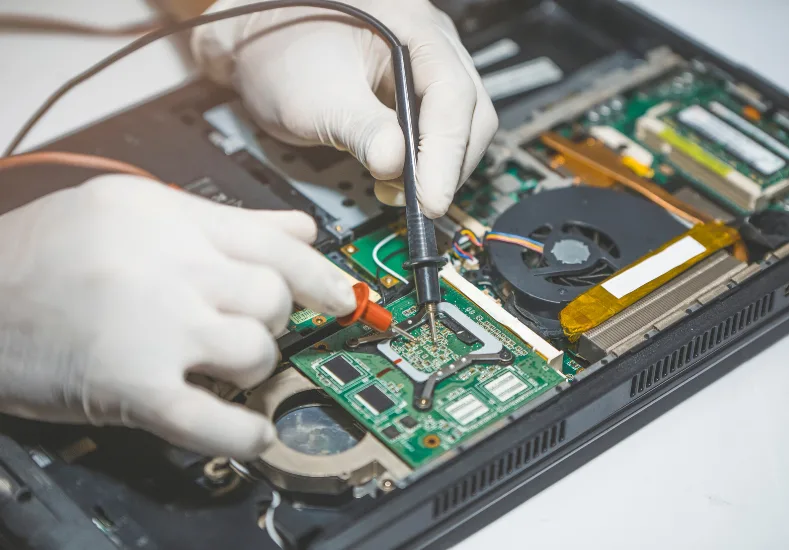
If Safe Mode fails to load, Recovery Mode doesn't detect the startup disk, or Disk Utility reports errors it cannot repair, the situation has moved beyond what software-based troubleshooting at home can address. A startup disk that doesn't appear in Recovery Mode is a particularly significant indicator, since it suggests the drive itself may be failing or has developed damage that prevents the system from reading it reliably. In these situations continuing to attempt restarts is unlikely to produce a different result and can in some cases cause further deterioration if the storage device is physically compromised. Logic board faults, while less common than software or storage issues, do produce identical startup symptoms and require specialised diagnostic equipment to properly identify and distinguish from drive-related causes. Apple Silicon Macs with firmware corruption require specific recovery procedures using Apple Configurator on a second Mac, which is a process that goes well beyond standard home troubleshooting
Conclusion: Getting Your Mac Booting Normally Again With Same Day Mac Repairs
A Mac that won't boot past the Apple logo is an unsettling problem to face, but it's one that spans a wide range of causes from relatively straightforward software conflicts through to more involved hardware faults, and the right approach depends entirely on accurately identifying which category applies to your specific situation. Working through Safe Mode, Recovery Mode, and Disk Utility at home is always a reasonable first step and occasionally resolves the issue without any further intervention needed. When those steps don't produce results, or when the startup disk isn't being detected at all, the situation calls for proper diagnostic equipment and hands-on expertise rather than continued restarts that risk worsening the condition of a potentially compromised drive. Same Day Mac Repairs can diagnose exactly what is preventing your Mac from completing its startup sequence, recover your data wherever the situation allows, and restore your machine to reliable normal operation so you're not left staring at that Apple logo any longer than necessary.